
Follow these steps to enable us to connect to you computer to view screens and use your mouse to diagnose problems and setup map software your Windows computer.
-
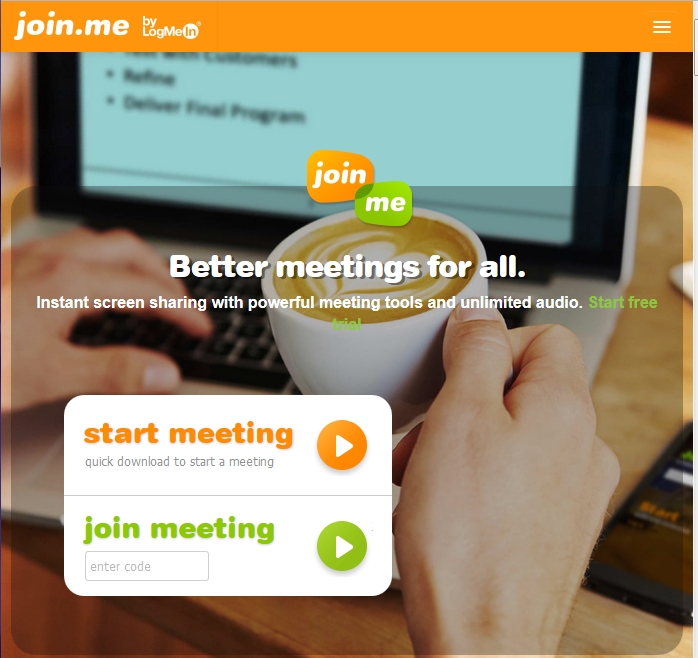
Click on this link. You should see this…
-
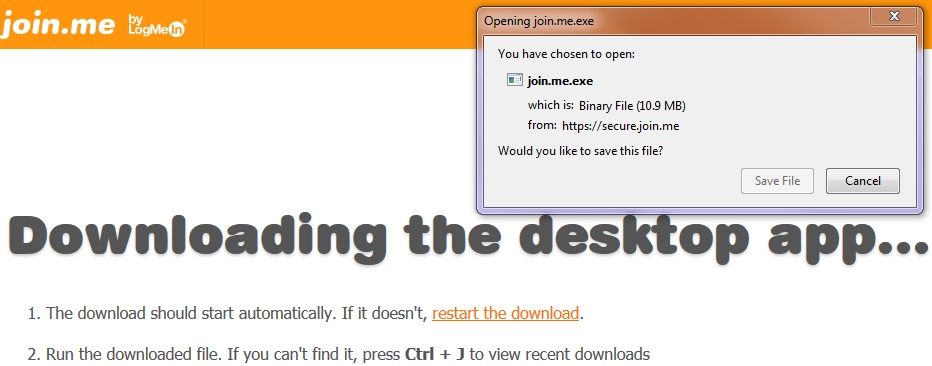
Click on START MEETING, and you should see this…
-
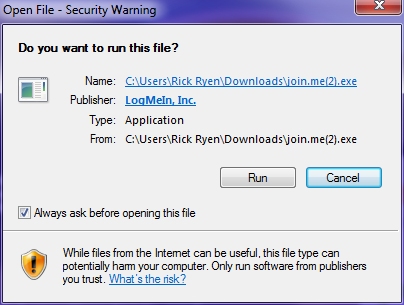
Click on the Save File button. Run the join.me.exe file you just downloaded. (different browsers save store downloaded files in different locations). You will see…
-
Click on the Run button to start the app. You will see a box saying connecting…, then this control panel. appear on your screen with a number on top.
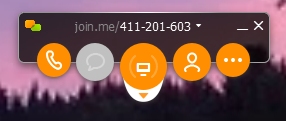
- Tell us the number at the top or the screen so we can connect to your computer and share your screen.
Note: We may ask for mouse control so we can initiate mouse actions ourself. You can watch your screen as we do the work. You can disconnect the screen sharing session at any time by clicking the X on the join.me control panel. Once you close the control panel, we can no longer attach to your computer until you ask us to do so and tell use the new access number.